Menu Manager — How to Use It
A simple guide for the Short Grain team. No tech skills needed.
Before you start
Open the
Menu Manager. Enter the shared passcode when asked. That's it — you're in.
1. Find the menu you want to edit
After you enter the passcode, you'll see a page called Shortgrain Menus with a card for every menu. Each card shows the page size (A4 or A5) and whether the logo is on. Click Open & edit on the one you want to change.
2. The editor screen
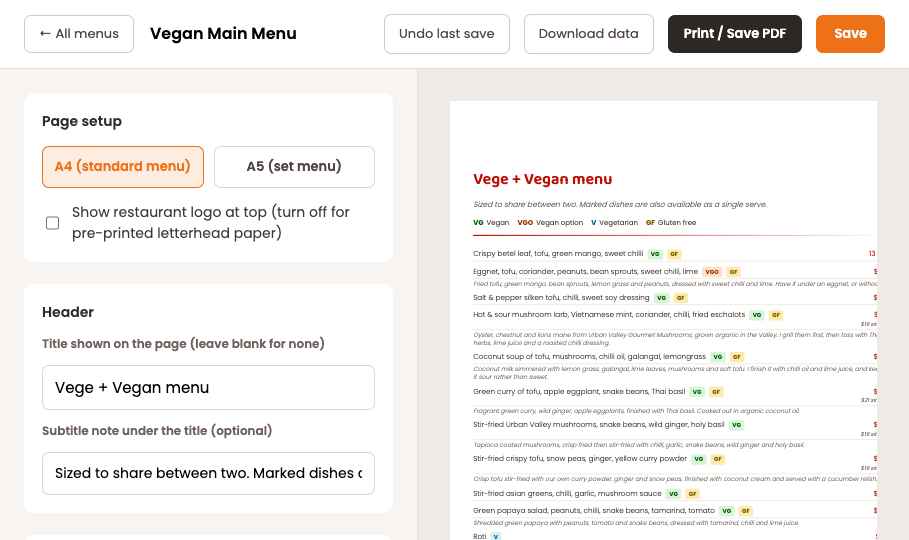
On the left you'll see everything you can change. On the right is a live preview — it updates instantly as you type, so you always see exactly what will print.
Page setup — choose A4 (standard menu) or A5 (set menu), and turn the logo on or off (turn it off if you're printing onto paper that already has the logo pre-printed).
Header — the big title and the small italic line underneath it.
Sections & dishes — the actual menu items.
Footer — the small note, the price line, and the disclaimer text at the bottom of the page.
3. Editing a dish
Every dish has: a name, a price, a description (or write "Your choice of" if it has choices below it), and a row of tag buttons (A, I, VG, VGO, V, GF) — click a tag to turn it on or off. Coloured means it's on.
If a dish has choices for the table (like a curry course with three options), click + Add a choice underneath it and type each option in.
A Australian seafood
I Imported seafood
VG Vegan
VGO Vegan option
V Vegetarian
GF Gluten free
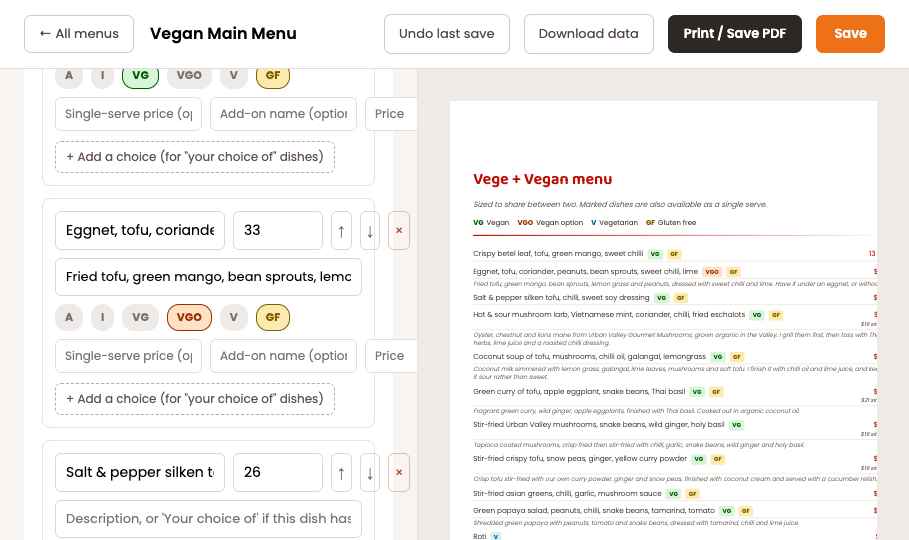
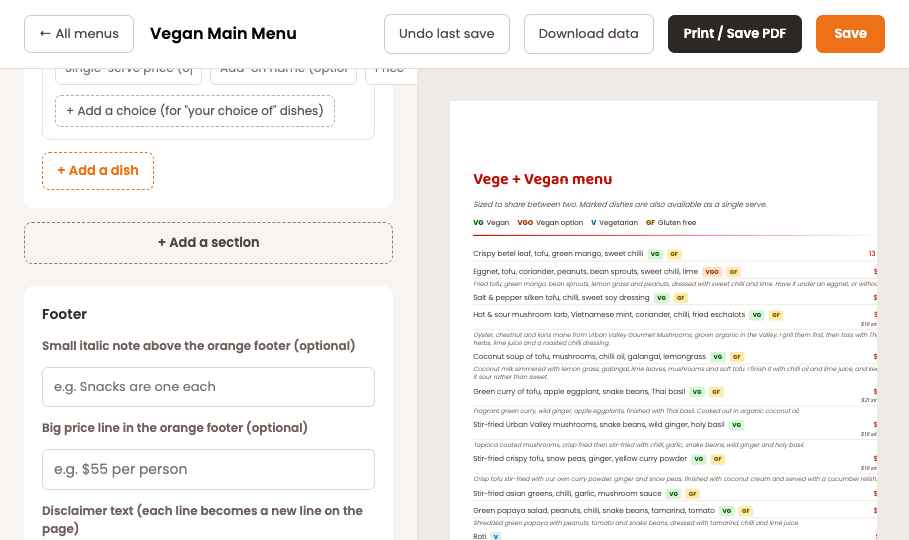
Use the ↑ ↓ arrows to reorder a dish or section. The × button removes it. + Add a dish adds a new blank one to that section, and + Add a section adds a whole new group (like "Sides" or "Desserts").
4. The footer
Scroll to the bottom of the left-hand panel to edit the small italic note, the big price line (e.g. "$55 per person"), and the disclaimer text. In the disclaimer box, press Enter to start a new line — each line prints on its own row.
5. Saving your changes
Nothing is permanent until you press the orange Save button at the top. Made a mistake? Click Undo last save straight after saving to go back to the previous version (this only remembers one step back, so don't save again before undoing).
6. Printing or exporting
Print / Save PDF — opens your computer's print screen with the menu ready to go. Choose your printer, or choose "Save as PDF" to get a PDF file instead.
Download data — saves a backup copy of that menu's content to your computer as a file. Keep these somewhere safe every so often in case anything goes wrong.
7. Making a brand-new menu
Go back to All menus, find the menu closest to what you want, and click Duplicate. A copy appears at the bottom of the page — open it and edit it into your new menu.
Troubleshooting
"It's asking for a passcode and mine doesn't work"
Passcodes are case-sensitive — check capital letters and symbols carefully. Check Google Password Manager to confirm the exact passcode.
"I made changes but they disappeared"
You probably forgot to click Save before closing the tab. Changes only stick once you press Save. Also: menus save to the device/browser you're using — if someone edits on a different computer, they won't see your unsaved changes either.
"I clicked Undo but it didn't do anything"
Undo only remembers the version from right before your last save. If you've saved twice since, the earlier version is gone. Always check the preview carefully before saving.
"The preview looks different to what prints"
The preview is scaled down to fit your screen, but it's the same layout that prints. If text looks squeezed or a line wraps awkwardly, try shortening that bit of text slightly.
"It printed onto 2 pages instead of 1"
In the print window, look for a "Safari" section and untick Print headers and footers (this adds the web address and date, which pushes the menu onto a second page). Then print again.
"Print / Save PDF opened something blank or wrong"
Close the print window, wait a couple of seconds for the preview to fully load, then try the button again. If it still looks wrong, refresh the page first.
"Two of us edited the same menu and one version got lost"
Each browser/device keeps its own copy. If two people edit the same menu on different computers, whoever saves last "wins" — the other's changes aren't merged in. Best practice: one person edits a given menu at a time.
"I accidentally deleted a dish or section"
If you haven't clicked Save yet, just click All menus then re-open the menu — your last saved version comes back, undoing the deletion. If you already saved, use Undo last save right away.
"The page looks broken or won't load"
Refresh the page. If that doesn't help, try a different browser (Chrome or Safari) or ask your manager to check the link is still correct.
Still stuck?
Don't guess — ask Tai before saving anything you're unsure about. It's always safer to double-check than to accidentally publish a wrong price.